Google

Tuesday, March 6, 2007

1. What is QoS?

QoS stands for "Quality of Service". It is a means to prioritize network traffic, to help ensure that the most important data gets through the network as quickly as possible.

2. How does it work?

QoS works by slowing unimportant packets down, or in the cases of extreme network traffic, throwing them away entirely. This leaves room for important packets to reach their destination as quickly as possible. Bascially, once your router is aware of how much data it can enqueue on the modem at any given time, it can "shape" traffic by delaying unimportant packets and "filling the pipe" with important packets FIRST, then using any leftover space to fill the pipe up in descending order of importance.

Since QoS cannot possibly speed up a packet, basically what it does is take your total available upstream bandwidth, calculate how much of the highest priority data it has, put that in the buffer, then go down the line in priority until it runs out of data to send or the buffer fills up. Any excess data is held back or "requeued" at the front of the line, where it will be evaluated in the next pass.

"Importance" is determined by the priority of the packet. Priorities range from "Low" or "Bulk" (depending on the router), to "High" or "Premium". The number of levels and the exact terminology depends on your router. As the names imply, "Low"/"Bulk" priority packets get the lowest priority, while "High"/"Premium" packets get the highest priority.

QoS packets may be prioritized by a number of criteria, including generated by applications themselves, but the most common techniques you will run into with Consumer grade routers are MAC Address, Ethernet Port, and TCP/IP Port.

MAC Address prioritizes network devices by their Media ACcess Address (MAC Address). This is a long string associated with your network card or other network device. Simply enter the MAC address and the priority and the router takes care of the rest. Normally, the default priority for unlisted devices seems (in my experience) to be set to "Low". So if you have a machine that needs higher priority access to the Internet, you'd set it to "Medium" or "High". Taking a single device and setting it to "Low" will not have much effect. If you want to lower the priority of a single machine, you have to instead raise the priority of the other machines on the LAN.

Ethernet Port is the simplest to configure. Your router is equipped with a series of Ethernet sockets. Ethernet Port priority allows you to say, for example, "anything plugged into Port 1 gets Low priority, while anything plugged into Port 2 gets High priority". This is easier to configure than MAC Address priority, of course, but you have to be careful when you rewire things, and it doesn't work for wireless devices at all.

TCP/IP Port allows you some level of control over applications, rather than devices. For example, you might decide that web browsing (port 80) should get priority over FTP (ports 20 and 21). Of course, many applications like Vonage pick a random TCP/IP port for the bulk of their communications, rendering this useless for that purpose. Setting ports 80 and 443 to "Medium", however, can keep your web surfing at least somewhat snappy while doing large FTP uploads.

In general, for a VoIP configuration like Vonage to coexist with high-bandwidth applications like BitTorrent, I recommend the following:

1. Vonage device MAC or Ethernet Port set to the highest possible priority.
2. Any machines that are likely to use a lot of bandwidth (such as BitTorrent) set to the lowest possible priority.
3. Machines that are not likely to use a lot of "bulk" bandwidth set to "Medium".
4. TCP/IP Ports 80, 81, and 443 set to "Medium" (so you can still surf the web on the machines that run BitTorrent)

3. What are the limitations of QoS?

QoS as found on any consumer router running on a standard Internet Service Provider will ONLY work on upstream/outbound data (data going from you to your ISP). You cannot realistically control the priority of data coming TO you FROM your ISP, since you can only control the data on your side of the modem.

It is true that slowing down the download of data will slow the acknowledgments of that data in a TCP/IP connection, and will therefore slow down (eventually) the transmission of data from the remote. However, this is not a function of QoS. This is a function of TCP/IP. And it will not solve contentions between VoIP and other data, since VoIP data still doesn't get priority. You CAN help this out by limiting your bandwidth to downloading applications if theiy support it, but this is throttling and not setting priorities.
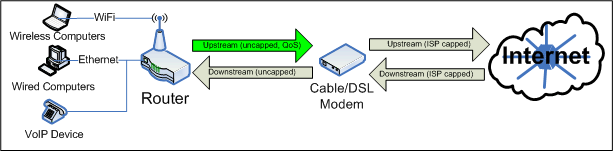

The only place where QoS is effective on a Consumer router using a regular ISP is the arrow in green.

4. What can go wrong with QoS?

QoS depends on knowing how much data can be enqueued at any time. This is called your "upstream bandwidth" or "upload bandwidth" allocation, and it is capped by your ISP, usually using a setting in your modem. Unfortunately, modems do not generally report this data directly to the router, so the router has to guess at upstream allocation. Some routers do this well, some do not. Some modems will queue the packets, thereby fooling the router into thinking that the modem can take more than the capped bandwidth
.
PERFECT QoS: In an ideal setting, 100% of the upstream bandwidth is used, all the time, and any packets are queued locally and discarded (if necesary) before hitting the modem when they reach their TTL (Time To Live, an indication of how long to continue attempting to deliver the packet).
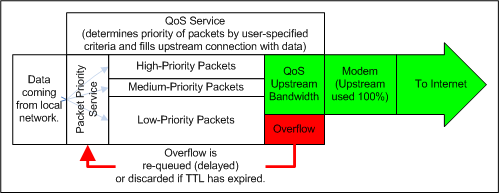

Perfect QoS. All packets that won't fit on the modem are discarded or requeued.

QoS Upstream Too High: If your router thinks it has more upstream bandwidth than it really has, QoS becomes useless, as the router is stuffing more data into the pipe than the pipe can handle. Since the modem itself doesn't know which packets are important, it starts delaying and dropping packets at random, including ones you think are important.
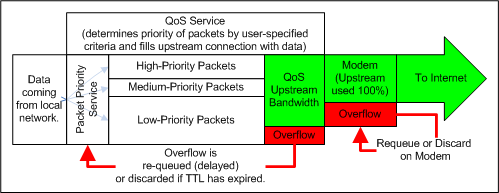
QoS Too High! The router thinks there is more bandwidth than there really is, forcing the modem (which does not know the priority of each packet) to requeue or discard at its discretion, which is first-come-first-served.

QoS Upstream Too Low: If your router thinks it has less upstream bandwidth than it really has, QoS becomes a limiting factor on your network, since the router is artifically limiting your upstream to some figure below what your connection is actually capable of.
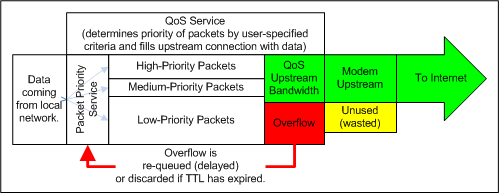
QoS Too Low! You are wasting upstream bandwidth.


NOTE: Vonage routers, such as the RTP300 and WRTP54G, use automatic upstream bandwidth calculation. They do not have a Manual setting that I've ever heard of. I strongly suspect, based on my experience with other Linksys routers, that in most cases their algorithm for determining bandwidth does not work well. It's impossible to know for sure since the router doesn't even display its guess like most routers do. There really isn't a lot you can do except get a router that has better upstream bandwidth determination for your Internet connection, or the ability to manually set the upstream bandwidth. Sorry.

If your AUTO setting on your router does not work well, but your router has a MANUAL setting, here's what you want to do:

1. Go to www.dslreports.com/stest on an IDLE connection, with QoS turned completely OFF and nothing else on your network trying to use the Internet at all (or your computer hooked directly to your modem). Run the Speed Test a couple of times, and write down the tested upstream bandwidth. Run this test several times, at different times of day.

2. Enter about 90-95% of the LOWEST number you get on your tests into the "upstream bandwidth" field on your router. At whatever time of day is the worst for your upload bandwidth, start a large upload (start BitTorrent, or a large FTP upload, or whatever), and test the connection using testyourvoip.com or an outbound VoIP call. And adjust this number upward until you start seeing loss on your upload results, then lower the number back down to the highest setting that gives you good results.

One criticism of this approach is that you are artifically limiting your bandwidth to the "lowest common denominator", particlularly on Internet connections that have good upstream bandwidth some of the time, and poor bandwidth at others, since you are telling your router NEVER to use any more than the LEAST of your tested bandwidth. That is absolutely, 100% correct. But if your router cannot get good numbers, then you HAVE to set it manually, and you'll get better useability out of an underused connection that works consistently than a connection that gets overused from time to time. (ie. when available bandwidth drops if you set the number too high, your VoIP line will start acting up again).

AFTERNOTE:

What I am espousing is the conservative possible setting, which will pretty much guarantee that VoIP stays clean and that the important services will make it through. I wrote this as a VoIP user who really doesn't care if my BitTorrents run at 100% all the time, as long as my VoIP line ALWAYS works perfectly.

You can go a lot more liberal (set the upstream higher), and what you will find is that you take better advantage of your connection during times when your connection is faster, but that sometimes the QoS traffic shaper tries to overfill the connection and you get a slight loss in quality under heavy loads when the upstream pipe slows down. The amount of quality loss is proportional to the amount over (if your upstream is set at 10% more than your real upstream at the moment, then on average ALL services, regardless of priority, will have 10% of their packets slowed down or discarded). So running at 5% over your minimum tested bandwidth will give you potentially a 5% packet discard or loss rate on VoIP when things get slow. But it buys you an extra 5% upstream performance almost all the time.

This is a decision that you need to make based on your priorities. You can even run QoS Upstream at a number over your real tested minimum upstream, understanding that when things slow down a bit, your QoS will be less effective, but when things are running fast you take better advantage of it. Or you can be like me and artifically slow your upstream down, but knowing that your important stuff will ALWAYS get all the bandwidth they need.

Your call. There's nothing inherently wrong with either school of thought on this one.

Ref http://vonage.nmhoy.net/qos.html

Thursday, February 1, 2007

Wonders of 'dd' and 'netcat' :: Cloning Operating Systems

Anytime we think about installing OS on more than one system 'cloning' comes to our attention. Because we are too lazy :-). Well that is one of the important characteristics of Systems Administrator so that he/she is forced to automate. In this document we will try to exploit the power of low level data transfer command popularly known as 'dd' and netcat. These programs are available for all major UNIX, Linux and Windows platforms. These commands are fairly popular among Forensics Analysis professionals.


Problem Description:

You got more than 1 machine with almost same hardware. i.e. same hard drive, SCSI card, graphics etc. You setup one single machine from top to bottom and now it is time to replicate OS setup on other machines. Commercial Software such as Ghost does a good job in cloning Windows based machines and now many of these software support Linux ext2 file system also. dd although very crude but gives you enough flexibility to manipulate cloning as you wish. We have demonstrated cloning of hard drives in machines loaded with Linux, Win2K, Solaris, HPUX machines using dd . This document is not a single click solution so you may have to juggle through here first. Once you get a hold of this process then it is very powerful to create your own disk cloning schemes save lots of time and hassle.

Basic concept:
'dd' command can copy any data bit by bit from one location to another location. So a simple command
dd if= of=
where, and can be a file, file system partition or whole hard drive so anything which can be read/write in binary form, dd can handle it. dd however is not a network program. In order to support dd with networking feature we use another nice command 'netcat'. netcat can be used to connect any TCP/UDP servers and a very good tool for diagnostics also. A typical netcat can run both into client server mode. such as:
server% nc -l -p 30000 ==> (Listen for port 30000 on )

client% nc 30000 ==> (Connect to at port 30000, ready to communicate)

This document will explain cloning under Linux, but concept is very similar for all other operating systems also for which 'dd' and 'netcat' binaries are available.


Operating System Cloning (Using STANDALONE machine):
Let us assume we have two drives (sda) and (sdb) attached to the system ( Example: Linux box, but can be any other OS). (sda) is drive with Master OS (let's call it Master OS drive) and (sdb) is a drive (slave drive) where we have to clone data from (sda).
IMPORTANT (IF you are cloning RAID/root devices): If slave drive has already RAID and/or root partition setup before. (especially / (root) partition), make sure you run fdisk (Use some 3rd Linux box if required) on slave hard drives , remove any partitions on slave hard drives and make it a plain new disk. If you don't do this and connect both drives with Master Linux box, it is very likely that Master linux box may come up with slave drive as (sda) i.e. primary device rather than expected (sdb) because how they appear in SCSI scan list. While following steps below you may destroy contents of actual Master Linux drive. So you have been warned already :-).
CAUTION (IF you are using SCSI drives) : In case slave drive is connected to external SCSI controllers and if external SCSI controllers appear first in SCSI scan list during boot and BIOS scan, then external drives will get first device name such as /dev/sda , /dev/sdb and your master Linux box may not boot from desired hard drive. In order to avoid this, DISABLE BIOS scan for external SCSI controller. This will cause not to scan SCSI drives connected with external SCSI controller, so Linux will get internal harddrive as /dev/sda and boot from desired disk. Drives on external controller will be available when Linux Kernel try to scan all SCSI bus while booting. For a typical Adaptec SCSI controller:
During Boot time, Go to SCSI controller BIOS screen (Ctrl-A)
Select Controller Configuration -> Configure/View Host Adapter Settings -> Advance Configuration options -> Host Adapter Bios = (Disabled: Not Scan) .
Save options and reboot box, During next boot, you will see SCSI BIOS Not Installed for this card.
DO NOT DISABLE BIOS SCAN FOR INTERNAL SCSI BUS. THIS IS NECESSARY TO FIND PRIMARY BOOT DISK.
Basically in any case IDE ot SCSI make sure you are booting from correct harddrive and that should appear as /dev/sda (Master drive) before you start any cloning process.

Let's assume we have to clone a harddrive (sda). Which has a partition table setup below. It has 1 NTFS partition loaded with WinNT/Win2K and rest Linux partition. (swap, Linux and Raid partition). Assuming second (slave) harddrive (sdb) is also attached to the same system.
Device Boot Start End Blocks Id System
/dev/sda1 1 9 72261 83 HPFS/NTFS
/dev/sda2 10 75 530145 82 Linux swap
/dev/sda3 76 467 3148740 fd Linux raid autodetect
/dev/sda4 468 2200 13920322+ 83 Linux

A simple way to clone this drive (/dev/sda) to another drive attached to this system (/dev/sdb) is to use dd command.

dd if=/dev/sda of=/dev/sdb

This command will copy each bit from sda (Master drive) to sdb (Slave drive) including MBR (Master Boot record). Thus after cloning new drive (sdb) is ready for deployment. This will also copy any information like File System IDs etc.

Since these days drive size is getting bigger and may run upto 100+ GB, this whole dd process may take long time and obviously there is no point in cloning Linux swap area or empty partitions which doesn't contain any useful data yet. Hence in this situation it is best to clone only relevant partitions. For this you need to partition second drive beforehand.

Note: Both drives are partitioned exactly same. If you have different brand harddrives, make sure each partition on second drive must be equal to or greater than first drive partitions. Also make sure File system ID should match for second drive also.


Device Boot Start End Blocks Id System
/dev/sdb1 1 9 72261 83 HPFS/NTFS
/dev/sdb2 10 75 530145 82 Linux swap
/dev/sdb3 76 467 3148740 fd Linux raid autodetect
/dev/sdb4 468 2200 13920322+ 83 Linux
Now cloning process partition by partition will look like:

First step is to copy MBR (Master Boot Record) to second drive. MBR is read right after BIOS in PCs bootstrap process. In case of Linux this will store LiLo ( Linux Loader) setup to find out Linux or Windows kernel. MBR is located with in first 446 bytes in harddrive (or partition) selected to store MBR during Linux install time or Windows install time. In our Linux installation we have selected MBR to be stored on first harddrive. Steps below will make second drive as a bootable drive.
Note: here we are using whole drive sda and sdb as input and output arguments of dd. (This process of making Solaris, HPUX drives bootable may be different but they allow you to setup boot record also just like PC's MBR)
dd if=/dev/sda of=/dev/sdb bs=446 count=1

There is no reason to clone swap partition. Swap is raw area.
Now you can clone other relevant partitions. Let's say /dev/sda3 will contain Linux OS and mounted as / (root) having ext2 or some other file system and /dev/sda4 is mounted as /home but doesn't contain any data. (May or may not contain any file system)
dd if=/dev/sda1 of=/dev/sdb1 ==> Clone NTFS partition
dd if=/dev/sda3 of=/dev/sdb3 ==> Clone RAID-1 partition having ext2 FS or some other.
So in this case we can save time just by cloning desired partitions.
Operating System Cloning over network:
One major bottleneck in above process is we have to physically open boxes, connect harddrive to Master box and the run clone process. This is easier in case of desktops where you have a liberty to connect external drives (IDE, SCSI bus). But Laptop can hardly house one IDE drive in general and there are no easy way to open and connect second drive for cloning. Thus above process will be highly useful if cloning process can be used over network. There are several possible combination presented here. Idea here is we have Master Linux box up and running over network and we boot slave box having harddrive which is to be cloned but we use some alternate media such as boot CD and boot slave linux using root file system on CD itself *NOT* on harddrive so that we are free to write on slave hardrive.
Master Box-----------network-----------Slave box
[OS(Linux) up and running] [ Booting *NOT * using slave drive]
192.168.0.1 192.168.0.254

One of Following 3 methods can be used to boot slave box using alternative media.

Method [1] Making your own root filesystem on ext2 CDROM. (Not Scalable )

One can make a small Linux distribution (less than 650MB) which can fit into CDROM. Burn this CDROM with ext2 filesystem (not ISO9660) and then use Linux boot floppy to boot from and use CDROM ext2 file system as / (root) file system (read only) (instead of root file system on Harddrive). This process although is doable but has issues like you need to have all possible drivers for network, SCSI etc. Making your custom ext2 read only file system on CD and booting from it would be quite a trial and error issue. If you are interested in making such Cds or bootable CDs see reference section for links. I once did that to clone HP Omnibook 6000 laptops loaded with Linux+Win2K OS together and it worked pretty okay but this is not a scalable solution though.


Method [2] Using popular Linux distribution and floppy combination.

On a similar line Linux distribution such as RedHat/SuSe boot CDROM at OS install time will allow you to boot into some kind of rescue system. In case of RedHat boot from RedHat OS CD and at initial OS install prompt type 'linux rescue ' at the boot time and this will let you use CDROM as root file system and provide you a shell prompt. Linux distribution uses this facility to repair problematic Linux install but we will use this for getting just shell prompt. Great thing about this is most Linux distribution comes up with lots of popular SCSI, network drivers so you don't have to worry about cooking your custom bootable CD.

Many common utilities including 'dd' command usually available in rescue mode. However you need netcat (static binary not dynamically linked) command. You can download netcat distribution and recompile it as a static binary (use -static flag). When I compiled it is small enough to fit into one floppy. So you can copy this into floppy. (I formatted floppy in ext2 format and then mounted in Linux system, copied netcat binary there.)

mkfs /dev/fd0
mount /dev/fd0 /mnt/floppy
cp nc /mnt/floppy
umount /mnt/floppy

So with 'linux rescue' mode and netcat binary on floppy you can use dd and netcat to clone your system over network. As we will see below.


Method [3] Modifying popular Linux distribution CDs and recreating your personal bootable ISO image:

If for some reason netcat won't fit in 1 floppy or you need more utility/binaries. Then you can change Linux distribution (SuSe/RedHat CD). This is a little hack but works.

NOTE: ISO images are read-only file systems. Even if you have an iso image (Say by using dd command )
dd if=/dev/cdrom of=redhat-boot-cd.iso
and if you try to mount this iso file using loopback device with option read/write (-o rw) (you need to have loopback device support (CONFIG_BLK_DEV_LOOP=y) compiled in kernel to do that)
mount -o loop -o rw ./redhat-boot-cd.iso /mnt/cdrom
This won't allow you to write/modify ISO filesystem.

I haven't found any good solutions to edit iso image directly , One such tool is winISO (http://www.winiso.com/ ) this is a shareware package so you have to pay for it. But you can use this to add more files in your ISO image and burn new image back to new CD. If you know any better solution let me know also :-)

Following steps are useful for adding additional files in RedHat bootable ISO image and burning a new CDs with additional files as of your choice.

First mount RedHat CD (say RedHat 7.1). mount /dev/cdrom /mnt/cdrom
Create a directory where you store stuff what goes on new CD. mkdir /home/cdburn
cd /mnt/cdrom
(tar cbf 20 - *) (cd /home/cdburn tar xvbf 20 -)
This tar command will copy whole CD (~650MB to your Harddrive). In most cases you do not need all CD. Important stuff you need from directories, dosutils/, images/, RedHat/base. But if you do not want to play much simply copy the whole CD as above tar command and then you can delete RedHat/RPMS directory. These are simply RPM packages and since our intention is not to install OS from CD so we don't need that.
Create subdirectory directory mkdir /home/cdburn/mystuff/ and add all your stuff such as static version of netcat binary etc. there.
Now delete all TRANSLATION TABLES (TRANS.TBLS) files, otherwise mkisofs command will complain. find ./ -name "TRANS.TBL" -exec /bin/rm {} \;
Make bootable iso image out of above distribution (/home/cdburn). Use mkisofs (part of mkisofs-1.9-6 package). The command below will create a bootable ISO image using initial boot image specified by -b, the -c option is for the boot catalog file. The -r option will make appropriate file ownership and modes. This iso image redhat-bootcd.iso is very similar to what is provided by RedHat except it will have our stuff also and we may have deleted any unnecessary contents such as RedHat/RPMS directory.
mkisofs -r -b images/boot.img -c boot.catalog -o /tmp/redhat-bootcd.iso ./
Finally burn this iso image redhat-bootcd.iso using your cd-burner.
Now the Real drill:
Whatever method you choose to boot slave machine ( RedHat bootable CD + floopy or custom bootable RedHat CD), ultimate aim is to obtain shell, dd and netcat binary after 'linux rescue'. After you get shell you can access files stored on boot CD by changing directory to /mnt/sources/mystuff .
Hopefully your ethernet card has been detected by now. (as most Linux distributions allow OS install over network) if not then you have to load drivers for your ethernet card. Linux distribution documentation usually tells that how and sometimes they provide extra drivers floppy. In case of RedHat these floppy images are generally stored under directory images/ and you can copy these images to your floppy using commands like
dd if= of=/dev/fd0


On Slave machine:
Run netcat command first on slave linux box (that to be cloned and booted using Linux boot CDROM as 'linux rescue' (See also Shell script case [1] in automation section below). Once ethernet card has been detected. (Use ifconfig -a command to check) assign IP address to this interface now on slave machine. Define loopback interface also. (You may choose different IP address for eth0). Also you may need to define /etc/hosts file before you can assign IP address. Use following commands to create your new /etc/hosts. (These are actually created in ram file system RAMFS).

rm /etc/hosts
echo "127.0.0.1 localhost" > /etc/hosts
echo "192.168.0.254 fakehost" >> /etc/hosts

ifconfig lo 127.0.0.1 up
ipconfig eth0 192.168.0.254 up

Assuming Master Linux box (from where you want to clone) is up and running with IP 192.168.0.1.

slave% nc -l -p 9000 dd of=/dev/sda (Replace /dev/sda with actual drive on your slave machine)

This will listen at port 9000 and whatever it gets at port 9000 will hand over to dd command and dd will simply write that to on slave harddrive (sda) bit by bit. Here I am assuming dd and netcat (nc) are available either through floppy (/mnt/floppy/nc or through /mnt/sources/mystuff/nc). In case of floppy you need to mount floppy first using command:
mount /dev/fd0 /mnt/floppy


On Master machine:
Now Login on master linux box and run following command. (It is advisable that Master Linux box should be in calm state , i.e no major jobs running on the machine). This command below will read master disk bit by bit and throw this bit stream to netcat command which is connected to netcat command at port 9000 on box.

master% dd if=/dev/sda nc 192.168.0.254 9000

That's it. You may have to wait for long time depending upon network speed and size of your harddrive. Typically 36GB drive may take 50 minutes over 100Mbps link. Again rather than cloning complete drive we can clone only relevant partitions and MBR only. That will make cloning much faster like we saw in above section.


Automating process and Case studies:
One of the primary reason for using dd and netcat way of cloning OS instead of using commercial software such as Ghost is we have a liberty to automate process as we like. Following scripts may help in automating cloning process.
Case [1]: Script for Slave machine (netcat and dd cloning) on the fly.

Make sure you have netcat command available either /mnt/floppy or /mnt/sources/mystuff area.
=================================================
cloneme.sh :: Shell script for slave machine.
=================================================
#!/bin/sh
############### Edit variables below ######################
FLOPPY_PATH=/mnt/floppy
MYSTUFF_PATH=/mnt/sources/mystuff

# Uncomment only One of the options below.
#### OPTION ==> 1 if using floppy ################
#NC=$FLOPPY_PATH/nc
#### OPTION ==> 2 if using mystuff/ on CD #########
NC=$MYSTUFF_PATH/nc

LPORT=9000
DEST=/dev/sda
SRC=$DEST
############# No need to edit after this in general ###########

if [ $# -eq 1 ]
then
IPADDR=$1
echo "###############################################################"
echo " If there are no errors here. You need to run following"
echo " command on Master Box."
echo ""
echo "dd if=$SRC nc $IPADDR $LPORT"
echo "###############################################################"

echo ""
echo "##>> Preparing /etc/hosts ##"
rm /etc/hosts
echo "127.0.0.1 localhost" > /etc/hosts
echo "$IPADDR fakehost" >> /etc/hosts

echo "#===================================================================="
echo "NOTE:: If you need to create routes"
echo " #route add -net netmask 255.255.255.0 gw $IPADDR metric 0"
echo "#===================================================================="

echo "##>> Preparing interfaces lo and eth0 ##"
ifconfig lo 127.0.0.1 up
ifconfig eth0 $IPADDR up

echo ""
echo ">>> Now start listening(at $LPORT) for traffic from Master :-)"
echo "$NC -l -p $LPORT dd of=$DEST"
$NC -l -p $LPORT dd of=$DEST

echo ""
echo "%%%%%%%%%%%%%%%%%%%%%%%%%%%%%%%%%%%%%%%%%%%%%%%%%%%%"
echo " Cloning Process completed..... :-) Reboot Now"
echo "%%%%%%%%%%%%%%%%%%%%%%%%%%%%%%%%%%%%%%%%%%%%%%%%%%%%"

else
echo "Usage:: cloneme "
fi


Case [2] Saving Disk Images (Export Image for later use):

Although you can clone running machine over the network anytime. But it is sometimes desirable to store base installation as a reference image and you may want to clone from this pristine image later. With the help of dd you can image disks also. But let's discuss some issues first.
Most 32 bit operating system (Linux for IA32 , Windows etc.) will have physical limitation on max file size. In general practical limit is 2GB as a max. file size. 64 bit OS (Solaris8, HPUX 11.0, Linux for IA64, etc.) will not have this limitation. So if you use dd to copy harddrive image you can maximum image 2GB harddrive. That is pretty useless these days. Fortunately dd can image in chunks and you can specify start and end blocks, skip blocks etc. So idea here is to image your big harddrives in chunks of approx. 2GB files over network. Although I noticed RedHat 7.1 with Linux 2.4.x kernels will allow fie size even bigger than 4GB on ext2 FS.
Also if you want to store images in compressed format (to save space) it is desirable to have each image file size not too large.
Following perl script (export-image.pl) can be used to image local Linux harddrive /dev/hda to remote machine over NFS using dd. If you are not running NFS you can implement same thing using dd and netcat. For now that would be a manual process. If somebody knows a better way to run netcat and transfer multiple files automatically between two machines please let me know and I will cook up some automation script here.

This perl script is actually use dd command something as described below. This is imaging your big harddrive into chunks of 1950 MB files named (1, 2, 3, 4, .....) over NFS to remote machine.
($NFS is NFS destination directory on another server having plenty of space)

For 1st Image:
dd if=/dev/hda of=$NFS/1 bs=1024k count=1950 skip=0
For 2nd image: (Skipping the part of harddrive used for 1st image.)
dd if=/dev/hda of=$NFS/2 bs=1024k count=1950 skip=1950
For 3rd image: (Skipping the part of Harddrive used for 1st+2nd image)
dd if=/dev/hda of=$NFS/3 bs=1024k count=1950 skip=3900
and so on.

In case you want to use netcat you can simply pipe above dd commands manually to netcat and listen using netcat and dd on remote machine, just like we used netcat and dd to clone hardisks above. For example imaging harddrive on machineA and saving image on machineB.

For 1st image:
machineB% nc -l -p 9000 dd of=1
machineA(master)% dd if=/dev/hda bs=1024k count=1950 skip=0 nc machineB 9000
For 2nd image:
machineB% nc -l -p 9001 dd of=2
machineA(master)% dd if=/dev/hda bs=1024k count=1950 skip=1950 nc machineB 9001
For 3rdimage:
machineB% nc -l -p 9002 dd of=2
machineA(master)% dd if=/dev/hda bs=1024k count=1950 skip=3900 nc machineB 9002
and so on.

Once you have images (1, 2, 3, 4 ....) stored on network then you can boot your slave Linux box using bootable CD and pull these images to slave box as described in case [3].

========================================================
export-image.pl :: Perl script to image big harddrive using dd and NFS.
========================================================
#!/usr/bin/perl
#####################################################
#This script will run dd command (in serial) and dump
#1950 blocks (1.9GB) file for each.
#Run script as perl export-image.pl
#####################################################

################ Edit variables below #########################
#device is raw device name for harddrive to be cloned (imaged).
$device="/dev/hda";
#mount NFS file system with large space available which can hold images.
$nfs_path="/nfs/remote/home/tmp";
#Image name (read from user) (Make sure you have $nfs_path/$image directory)
#on remote machine.
$image="ob6000";
############################################################
$dd="/bin/dd";
#For compressing image
$bzip2="/usr/bin/bzip2";
$suffix=".bz2";
############## No need to edit after this #########################

$bs="1024k";
$block_count=1950;
$image_dir="$nfs_path/$image";
$compress=$bzip2;

$proceed=0;

if(!(-d $image_dir) )
{ die "\nOops!! Image Directory $image_dir must exist with chmod 777 permission\n"; }

system("clear");
print <;
if(($compress_flag eq "y") or ($compress_flag eq "Y"))
{ $compress_flag=1; }
else
{ $compress_flag=0; }

print "\n\n";
print "***************************************************\n";
print " Local Device = $device [SOURCE] \n";
print " Image Dir = $image_dir [TARGET] \n";
print "***************************************************\n\n\n";
print "Dude! I hope you understand what are you doing by pressing [y/Y] here :-) \n";
print " Press [y/Y] if you want to continue .. ";
$con=; chomp($con);


if(($con eq "y") or ($con eq "Y"))
{
$i=0;
$image_size=1; #Some fake value greater than zero.


print "\n\nDisk Imaging starts...\n";
system("date");
while($image_size > 0)
{
$image_name="$image_dir/$i";
print "##############################################\n";
print "Creating Image $image_name\n";
print "##############################################\n";
$skip=$i*$block_count;
print "$dd if=$device of=$image_name bs=$bs count=$block_count skip=$skip \n";
system("$dd if=$device of=$image_name bs=$bs count=$block_count skip=$skip");
if($compress_flag)
{
print "Compressing Image: $bzip2 $image_name => $image_name$suffix\n";
system("$bzip2 $image_name");
$image_name .= "$suffix";
}
++$i;
$image_size=(stat($image_name))[7];
system("date");
}
}
else
{
print "Bye Bye ...\n";
}


Case [3] Importing Disk Images (1, 2, 3, 4 ...) created in Case [2] using netcat, dd and cat

This part is little tricky in the sense we want all images (1, 2, 3, 4, ...) to be imported on slave machine and use dd to write these images serially on slave drive. A very simple set of commands can be used as below.

On Slave machine: (booted through linux rescue). Run following netcat command to capture incoming data stream.

machineC(slave)% nc -l -p 9000 dd of=/dev/hda

On machineB machine: (where images 1, 2, 3, 4 .... are stored). Run following cat and netcat command. Make sure you cat images in the same sequence as they were imported in case [2]. cat command will simply join these images and throw data stream to netcat which slave machine will pick up and copy bit by bit on slave harddrive.

machineB% cat 1 2 3 4 .... nc machineC 9000


Case [4] Importing Disk images created in Case[2]:
Most likely 'linux rescue' system won't have NFS support. Which means when you boot slave box using such method you can not access resources over NFS. But if you cook your own CD and that has NFS support and perl the following perl script can be used to fetch images stored earlier from machineB using NFS. This script is actually doing:
($NFS is NFS source directory on another server machineB where you have images 1, 2, 3, 4, ... stored earlier)

For image 1:
dd if=$NFS/1 of=/dev/hda bs=1024k conv=notrunc seek=0
For image 2:
dd if=$NFS/2 of=/dev/hda bs=1024k conv=notrunc seek=1950
For image 3:
dd if=$NFS/3 of=/dev/hda bs=1024k conv=notrunc seek=3900

In any case if you are interested in using perl script below (if you have perl and NFS client support on slave linux box).

========================================================
import-image.pl
========================================================

#!/usr/bin/perl
#####################################################
#This script will run dd command (in serial) and dump
#and import image.
#####################################################

##############################################################################
#device is target raw device name for harddrive to be cloned.
$device="/dev/hda";
#mount NFS file system with large space available which can hold images.
$nfs_path="/mnt/images";
#Image name (read from user)
$image="ob6000";
###############################################################################
$dd="/bin/dd";
#$bzcat="/usr/bin/bzcat";
#$suffix=".bz2";

$bs="1024k";
$block_count=1950;
###############################################################################
$image_dir="$nfs_path/$image";

$proceed=0;

if(!(-d $image_dir) )
{ die "\nOops!! No Image Directory $image_dir\n"; }

system("clear");
print "***************************************************\n";
print " Local Device = $device [TARGET]\n";
print " Image Dir = $image_dir [SOURCE]\n";
print "***************************************************\n\n\n";
print "Dude! I hope you understand what are you doing by pressing [y/Y] here :-) \n";
print " Press [y/Y] if you want to continue .. ";
$con=; chomp($con);
print " Once Again!!! Press [y/Y] if you want to continue .. ";
$con=; chomp($con);

system("date");
if(($con eq "y") or ($con eq "Y"))
{
print "\n\nDisk Imaging import starts...\n";

$i=0;
$image_name="$image_dir/$i";
while(-f $image_name )
{
print "##############################################\n";
print "Importing Image $image_name\n";
print "##############################################\n";
$seek=$i*$block_count;
print "##############################################\n";
$seek=$i*$block_count;
print "$dd if=$image_name of=$device bs=$bs conv=notrunc seek=$seek \n";
#system("$bzcat $image_name $dd of=$device bs=$bs conv=notrunc seek=$seek");
system("$dd if=$image_name of=$device bs=$bs conv=notrunc seek=$seek");
++$i;
$image_name="$image_dir/$i";
system("date");
}
}
else
{
print "Bye Bye ...\n";
}


Other Operating Systems Tips:
You can pretty much do same in other operating systems also. This section quickly list few tips that may be useful.

Windows:

You can find GNU utilities ( http://unxutils.sourceforge.net/ ) for Win32 platforms which includes dd.exe command.
dd.exe syntax is similar to as you use on Linux side. For physical partition you may have to use devicename something like \\.\PhysicalDrive0 etc. For example
dd if=\\.\PhysicalDrive0 of=
You can download netcat for windows ( http://www.l0pht.com/~weld/netcat/ )
If you are cloning WinNT/2K system , you need to change SID for the new cloned system if machine is participating in Windows domain. You can use Ghostwalker program from Ghost distribution or can use newsid.exe from http://www.sysinternals.com/

Solaris:

Burning bootable CDROM for Solaris. ( http://www.lka.ch/projects/solcdburn/solcdburn.html )
Sun Blue print : http://www.sun.com/software/solutions/blueprints/0301/BuildBoot.pdf
To Make disk bootable (just like putting MBR in Linux) use command installboot(1M)
Others: (Make disk bootable)
Irix : dvhtool
HP-UX: mkboot
Tru64: disklabel


Conclusion:

Few possible uses of netcat and dd shown in this document. Although methods presented here are very simple and easy to use but have few pros and cons also. This technique is very good for on the fly OS cloning. When we image the whole drive we need the equivalent harddrive space on other machine. This may not be very much practical. You can try compressing those images which will save lots of space. I noticed dd image can be compressed upto 30-80% depending upon real data on the drive using gzip/compress program. This cloning and imaging method may be very effective in forensic analysis where sometimes you need an exact snapshot of harddrive including swap space partitions. You can always break your images in small pieces (may be compress them) transfer over network to somewhere else and reproduce data. As mentioned above one of the great advantage here is to custom your own cloning scheme.


References:
GNU utilities for Win32. http://unxutils.sourceforge.net/
netcat for Windows. http://www.l0pht.com/~weld/netcat/
First Attempt at Creating a Bootable Live Filesystem on a CDROM http://www.rajeevnet.com/hacks_hints/os_clone/*%20http://www.linuxgazette.com/issue54/nielsen.html
Good Site for Windows utilities such as newsid.exe: http://www.sysinternals.com
Modifying ISO image http://www.winiso.com/
Solaris Bootable CD creation: http://www.lka.ch/projects/solcdburn/solcdburn.html
Sun Blueprint: http://www.sun.com/software/solutions/blueprints/0301/BuildBoot.pdf
Linux on Floppy: http://www.toms.net/rb/
Static binaries for Linux.

Wonders of 'dd' and 'netcat' :: Cloning Operating Systems

Anytime we think about installing OS on more than one system 'cloning' comes to our attention. Because we are too lazy :-). Well that is one of the important characteristics of Systems Administrator so that he/she is forced to automate. In this document we will try to exploit the power of low level data transfer command popularly known as 'dd' and netcat. These programs are available for all major UNIX, Linux and Windows platforms. These commands are fairly popular among Forensics Analysis professionals.


Problem Description:

You got more than 1 machine with almost same hardware. i.e. same hard drive, SCSI card, graphics etc. You setup one single machine from top to bottom and now it is time to replicate OS setup on other machines. Commercial Software such as Ghost does a good job in cloning Windows based machines and now many of these software support Linux ext2 file system also. dd although very crude but gives you enough flexibility to manipulate cloning as you wish. We have demonstrated cloning of hard drives in machines loaded with Linux, Win2K, Solaris, HPUX machines using dd . This document is not a single click solution so you may have to juggle through here first. Once you get a hold of this process then it is very powerful to create your own disk cloning schemes save lots of time and hassle.

Basic concept:
'dd' command can copy any data bit by bit from one location to another location. So a simple command
dd if= of=
where, and can be a file, file system partition or whole hard drive so anything which can be read/write in binary form, dd can handle it. dd however is not a network program. In order to support dd with networking feature we use another nice command 'netcat'. netcat can be used to connect any TCP/UDP servers and a very good tool for diagnostics also. A typical netcat can run both into client server mode. such as:
server% nc -l -p 30000 ==> (Listen for port 30000 on )

client% nc 30000 ==> (Connect to at port 30000, ready to communicate)

This document will explain cloning under Linux, but concept is very similar for all other operating systems also for which 'dd' and 'netcat' binaries are available.


Operating System Cloning (Using STANDALONE machine):
Let us assume we have two drives (sda) and (sdb) attached to the system ( Example: Linux box, but can be any other OS). (sda) is drive with Master OS (let's call it Master OS drive) and (sdb) is a drive (slave drive) where we have to clone data from (sda).
IMPORTANT (IF you are cloning RAID/root devices): If slave drive has already RAID and/or root partition setup before. (especially / (root) partition), make sure you run fdisk (Use some 3rd Linux box if required) on slave hard drives , remove any partitions on slave hard drives and make it a plain new disk. If you don't do this and connect both drives with Master Linux box, it is very likely that Master linux box may come up with slave drive as (sda) i.e. primary device rather than expected (sdb) because how they appear in SCSI scan list. While following steps below you may destroy contents of actual Master Linux drive. So you have been warned already :-).
CAUTION (IF you are using SCSI drives) : In case slave drive is connected to external SCSI controllers and if external SCSI controllers appear first in SCSI scan list during boot and BIOS scan, then external drives will get first device name such as /dev/sda , /dev/sdb and your master Linux box may not boot from desired hard drive. In order to avoid this, DISABLE BIOS scan for external SCSI controller. This will cause not to scan SCSI drives connected with external SCSI controller, so Linux will get internal harddrive as /dev/sda and boot from desired disk. Drives on external controller will be available when Linux Kernel try to scan all SCSI bus while booting. For a typical Adaptec SCSI controller:
During Boot time, Go to SCSI controller BIOS screen (Ctrl-A)
Select Controller Configuration -> Configure/View Host Adapter Settings -> Advance Configuration options -> Host Adapter Bios = (Disabled: Not Scan) .
Save options and reboot box, During next boot, you will see SCSI BIOS Not Installed for this card.
DO NOT DISABLE BIOS SCAN FOR INTERNAL SCSI BUS. THIS IS NECESSARY TO FIND PRIMARY BOOT DISK.
Basically in any case IDE ot SCSI make sure you are booting from correct harddrive and that should appear as /dev/sda (Master drive) before you start any cloning process.

Let's assume we have to clone a harddrive (sda). Which has a partition table setup below. It has 1 NTFS partition loaded with WinNT/Win2K and rest Linux partition. (swap, Linux and Raid partition). Assuming second (slave) harddrive (sdb) is also attached to the same system.
Device Boot Start End Blocks Id System
/dev/sda1 1 9 72261 83 HPFS/NTFS
/dev/sda2 10 75 530145 82 Linux swap
/dev/sda3 76 467 3148740 fd Linux raid autodetect
/dev/sda4 468 2200 13920322+ 83 Linux

A simple way to clone this drive (/dev/sda) to another drive attached to this system (/dev/sdb) is to use dd command.

dd if=/dev/sda of=/dev/sdb

This command will copy each bit from sda (Master drive) to sdb (Slave drive) including MBR (Master Boot record). Thus after cloning new drive (sdb) is ready for deployment. This will also copy any information like File System IDs etc.

Since these days drive size is getting bigger and may run upto 100+ GB, this whole dd process may take long time and obviously there is no point in cloning Linux swap area or empty partitions which doesn't contain any useful data yet. Hence in this situation it is best to clone only relevant partitions. For this you need to partition second drive beforehand.

Note: Both drives are partitioned exactly same. If you have different brand harddrives, make sure each partition on second drive must be equal to or greater than first drive partitions. Also make sure File system ID should match for second drive also.


Device Boot Start End Blocks Id System
/dev/sdb1 1 9 72261 83 HPFS/NTFS
/dev/sdb2 10 75 530145 82 Linux swap
/dev/sdb3 76 467 3148740 fd Linux raid autodetect
/dev/sdb4 468 2200 13920322+ 83 Linux
Now cloning process partition by partition will look like:

First step is to copy MBR (Master Boot Record) to second drive. MBR is read right after BIOS in PCs bootstrap process. In case of Linux this will store LiLo ( Linux Loader) setup to find out Linux or Windows kernel. MBR is located with in first 446 bytes in harddrive (or partition) selected to store MBR during Linux install time or Windows install time. In our Linux installation we have selected MBR to be stored on first harddrive. Steps below will make second drive as a bootable drive.
Note: here we are using whole drive sda and sdb as input and output arguments of dd. (This process of making Solaris, HPUX drives bootable may be different but they allow you to setup boot record also just like PC's MBR)
dd if=/dev/sda of=/dev/sdb bs=446 count=1

There is no reason to clone swap partition. Swap is raw area.
Now you can clone other relevant partitions. Let's say /dev/sda3 will contain Linux OS and mounted as / (root) having ext2 or some other file system and /dev/sda4 is mounted as /home but doesn't contain any data. (May or may not contain any file system)
dd if=/dev/sda1 of=/dev/sdb1 ==> Clone NTFS partition
dd if=/dev/sda3 of=/dev/sdb3 ==> Clone RAID-1 partition having ext2 FS or some other.
So in this case we can save time just by cloning desired partitions.
Operating System Cloning over network:
One major bottleneck in above process is we have to physically open boxes, connect harddrive to Master box and the run clone process. This is easier in case of desktops where you have a liberty to connect external drives (IDE, SCSI bus). But Laptop can hardly house one IDE drive in general and there are no easy way to open and connect second drive for cloning. Thus above process will be highly useful if cloning process can be used over network. There are several possible combination presented here. Idea here is we have Master Linux box up and running over network and we boot slave box having harddrive which is to be cloned but we use some alternate media such as boot CD and boot slave linux using root file system on CD itself *NOT* on harddrive so that we are free to write on slave hardrive.
Master Box-----------network-----------Slave box
[OS(Linux) up and running] [ Booting *NOT * using slave drive]
192.168.0.1 192.168.0.254

One of Following 3 methods can be used to boot slave box using alternative media.

Method [1] Making your own root filesystem on ext2 CDROM. (Not Scalable )

One can make a small Linux distribution (less than 650MB) which can fit into CDROM. Burn this CDROM with ext2 filesystem (not ISO9660) and then use Linux boot floppy to boot from and use CDROM ext2 file system as / (root) file system (read only) (instead of root file system on Harddrive). This process although is doable but has issues like you need to have all possible drivers for network, SCSI etc. Making your custom ext2 read only file system on CD and booting from it would be quite a trial and error issue. If you are interested in making such Cds or bootable CDs see reference section for links. I once did that to clone HP Omnibook 6000 laptops loaded with Linux+Win2K OS together and it worked pretty okay but this is not a scalable solution though.


Method [2] Using popular Linux distribution and floppy combination.

On a similar line Linux distribution such as RedHat/SuSe boot CDROM at OS install time will allow you to boot into some kind of rescue system. In case of RedHat boot from RedHat OS CD and at initial OS install prompt type 'linux rescue ' at the boot time and this will let you use CDROM as root file system and provide you a shell prompt. Linux distribution uses this facility to repair problematic Linux install but we will use this for getting just shell prompt. Great thing about this is most Linux distribution comes up with lots of popular SCSI, network drivers so you don't have to worry about cooking your custom bootable CD.

Many common utilities including 'dd' command usually available in rescue mode. However you need netcat (static binary not dynamically linked) command. You can download netcat distribution and recompile it as a static binary (use -static flag). When I compiled it is small enough to fit into one floppy. So you can copy this into floppy. (I formatted floppy in ext2 format and then mounted in Linux system, copied netcat binary there.)

mkfs /dev/fd0
mount /dev/fd0 /mnt/floppy
cp nc /mnt/floppy
umount /mnt/floppy

So with 'linux rescue' mode and netcat binary on floppy you can use dd and netcat to clone your system over network. As we will see below.


Method [3] Modifying popular Linux distribution CDs and recreating your personal bootable ISO image:

If for some reason netcat won't fit in 1 floppy or you need more utility/binaries. Then you can change Linux distribution (SuSe/RedHat CD). This is a little hack but works.

NOTE: ISO images are read-only file systems. Even if you have an iso image (Say by using dd command )
dd if=/dev/cdrom of=redhat-boot-cd.iso
and if you try to mount this iso file using loopback device with option read/write (-o rw) (you need to have loopback device support (CONFIG_BLK_DEV_LOOP=y) compiled in kernel to do that)
mount -o loop -o rw ./redhat-boot-cd.iso /mnt/cdrom
This won't allow you to write/modify ISO filesystem.

I haven't found any good solutions to edit iso image directly , One such tool is winISO (http://www.winiso.com/ ) this is a shareware package so you have to pay for it. But you can use this to add more files in your ISO image and burn new image back to new CD. If you know any better solution let me know also :-)

Following steps are useful for adding additional files in RedHat bootable ISO image and burning a new CDs with additional files as of your choice.

First mount RedHat CD (say RedHat 7.1). mount /dev/cdrom /mnt/cdrom
Create a directory where you store stuff what goes on new CD. mkdir /home/cdburn
cd /mnt/cdrom
(tar cbf 20 - *) (cd /home/cdburn tar xvbf 20 -)
This tar command will copy whole CD (~650MB to your Harddrive). In most cases you do not need all CD. Important stuff you need from directories, dosutils/, images/, RedHat/base. But if you do not want to play much simply copy the whole CD as above tar command and then you can delete RedHat/RPMS directory. These are simply RPM packages and since our intention is not to install OS from CD so we don't need that.
Create subdirectory directory mkdir /home/cdburn/mystuff/ and add all your stuff such as static version of netcat binary etc. there.
Now delete all TRANSLATION TABLES (TRANS.TBLS) files, otherwise mkisofs command will complain. find ./ -name "TRANS.TBL" -exec /bin/rm {} \;
Make bootable iso image out of above distribution (/home/cdburn). Use mkisofs (part of mkisofs-1.9-6 package). The command below will create a bootable ISO image using initial boot image specified by -b, the -c option is for the boot catalog file. The -r option will make appropriate file ownership and modes. This iso image redhat-bootcd.iso is very similar to what is provided by RedHat except it will have our stuff also and we may have deleted any unnecessary contents such as RedHat/RPMS directory.
mkisofs -r -b images/boot.img -c boot.catalog -o /tmp/redhat-bootcd.iso ./
Finally burn this iso image redhat-bootcd.iso using your cd-burner.
Now the Real drill:
Whatever method you choose to boot slave machine ( RedHat bootable CD + floopy or custom bootable RedHat CD), ultimate aim is to obtain shell, dd and netcat binary after 'linux rescue'. After you get shell you can access files stored on boot CD by changing directory to /mnt/sources/mystuff .
Hopefully your ethernet card has been detected by now. (as most Linux distributions allow OS install over network) if not then you have to load drivers for your ethernet card. Linux distribution documentation usually tells that how and sometimes they provide extra drivers floppy. In case of RedHat these floppy images are generally stored under directory images/ and you can copy these images to your floppy using commands like
dd if= of=/dev/fd0


On Slave machine:
Run netcat command first on slave linux box (that to be cloned and booted using Linux boot CDROM as 'linux rescue' (See also Shell script case [1] in automation section below). Once ethernet card has been detected. (Use ifconfig -a command to check) assign IP address to this interface now on slave machine. Define loopback interface also. (You may choose different IP address for eth0). Also you may need to define /etc/hosts file before you can assign IP address. Use following commands to create your new /etc/hosts. (These are actually created in ram file system RAMFS).

rm /etc/hosts
echo "127.0.0.1 localhost" > /etc/hosts
echo "192.168.0.254 fakehost" >> /etc/hosts

ifconfig lo 127.0.0.1 up
ipconfig eth0 192.168.0.254 up

Assuming Master Linux box (from where you want to clone) is up and running with IP 192.168.0.1.

slave% nc -l -p 9000 dd of=/dev/sda (Replace /dev/sda with actual drive on your slave machine)

This will listen at port 9000 and whatever it gets at port 9000 will hand over to dd command and dd will simply write that to on slave harddrive (sda) bit by bit. Here I am assuming dd and netcat (nc) are available either through floppy (/mnt/floppy/nc or through /mnt/sources/mystuff/nc). In case of floppy you need to mount floppy first using command:
mount /dev/fd0 /mnt/floppy


On Master machine:
Now Login on master linux box and run following command. (It is advisable that Master Linux box should be in calm state , i.e no major jobs running on the machine). This command below will read master disk bit by bit and throw this bit stream to netcat command which is connected to netcat command at port 9000 on box.

master% dd if=/dev/sda nc 192.168.0.254 9000

That's it. You may have to wait for long time depending upon network speed and size of your harddrive. Typically 36GB drive may take 50 minutes over 100Mbps link. Again rather than cloning complete drive we can clone only relevant partitions and MBR only. That will make cloning much faster like we saw in above section.


Automating process and Case studies:
One of the primary reason for using dd and netcat way of cloning OS instead of using commercial software such as Ghost is we have a liberty to automate process as we like. Following scripts may help in automating cloning process.
Case [1]: Script for Slave machine (netcat and dd cloning) on the fly.

Make sure you have netcat command available either /mnt/floppy or /mnt/sources/mystuff area.
=================================================
cloneme.sh :: Shell script for slave machine.
=================================================
#!/bin/sh
############### Edit variables below ######################
FLOPPY_PATH=/mnt/floppy
MYSTUFF_PATH=/mnt/sources/mystuff

# Uncomment only One of the options below.
#### OPTION ==> 1 if using floppy ################
#NC=$FLOPPY_PATH/nc
#### OPTION ==> 2 if using mystuff/ on CD #########
NC=$MYSTUFF_PATH/nc

LPORT=9000
DEST=/dev/sda
SRC=$DEST
############# No need to edit after this in general ###########

if [ $# -eq 1 ]
then
IPADDR=$1
echo "###############################################################"
echo " If there are no errors here. You need to run following"
echo " command on Master Box."
echo ""
echo "dd if=$SRC nc $IPADDR $LPORT"
echo "###############################################################"

echo ""
echo "##>> Preparing /etc/hosts ##"
rm /etc/hosts
echo "127.0.0.1 localhost" > /etc/hosts
echo "$IPADDR fakehost" >> /etc/hosts

echo "#===================================================================="
echo "NOTE:: If you need to create routes"
echo " #route add -net netmask 255.255.255.0 gw $IPADDR metric 0"
echo "#===================================================================="

echo "##>> Preparing interfaces lo and eth0 ##"
ifconfig lo 127.0.0.1 up
ifconfig eth0 $IPADDR up

echo ""
echo ">>> Now start listening(at $LPORT) for traffic from Master :-)"
echo "$NC -l -p $LPORT dd of=$DEST"
$NC -l -p $LPORT dd of=$DEST

echo ""
echo "%%%%%%%%%%%%%%%%%%%%%%%%%%%%%%%%%%%%%%%%%%%%%%%%%%%%"
echo " Cloning Process completed..... :-) Reboot Now"
echo "%%%%%%%%%%%%%%%%%%%%%%%%%%%%%%%%%%%%%%%%%%%%%%%%%%%%"

else
echo "Usage:: cloneme "
fi


Case [2] Saving Disk Images (Export Image for later use):

Although you can clone running machine over the network anytime. But it is sometimes desirable to store base installation as a reference image and you may want to clone from this pristine image later. With the help of dd you can image disks also. But let's discuss some issues first.
Most 32 bit operating system (Linux for IA32 , Windows etc.) will have physical limitation on max file size. In general practical limit is 2GB as a max. file size. 64 bit OS (Solaris8, HPUX 11.0, Linux for IA64, etc.) will not have this limitation. So if you use dd to copy harddrive image you can maximum image 2GB harddrive. That is pretty useless these days. Fortunately dd can image in chunks and you can specify start and end blocks, skip blocks etc. So idea here is to image your big harddrives in chunks of approx. 2GB files over network. Although I noticed RedHat 7.1 with Linux 2.4.x kernels will allow fie size even bigger than 4GB on ext2 FS.
Also if you want to store images in compressed format (to save space) it is desirable to have each image file size not too large.
Following perl script (export-image.pl) can be used to image local Linux harddrive /dev/hda to remote machine over NFS using dd. If you are not running NFS you can implement same thing using dd and netcat. For now that would be a manual process. If somebody knows a better way to run netcat and transfer multiple files automatically between two machines please let me know and I will cook up some automation script here.

This perl script is actually use dd command something as described below. This is imaging your big harddrive into chunks of 1950 MB files named (1, 2, 3, 4, .....) over NFS to remote machine.
($NFS is NFS destination directory on another server having plenty of space)

For 1st Image:
dd if=/dev/hda of=$NFS/1 bs=1024k count=1950 skip=0
For 2nd image: (Skipping the part of harddrive used for 1st image.)
dd if=/dev/hda of=$NFS/2 bs=1024k count=1950 skip=1950
For 3rd image: (Skipping the part of Harddrive used for 1st+2nd image)
dd if=/dev/hda of=$NFS/3 bs=1024k count=1950 skip=3900
and so on.

In case you want to use netcat you can simply pipe above dd commands manually to netcat and listen using netcat and dd on remote machine, just like we used netcat and dd to clone hardisks above. For example imaging harddrive on machineA and saving image on machineB.

For 1st image:
machineB% nc -l -p 9000 dd of=1
machineA(master)% dd if=/dev/hda bs=1024k count=1950 skip=0 nc machineB 9000
For 2nd image:
machineB% nc -l -p 9001 dd of=2
machineA(master)% dd if=/dev/hda bs=1024k count=1950 skip=1950 nc machineB 9001
For 3rdimage:
machineB% nc -l -p 9002 dd of=2
machineA(master)% dd if=/dev/hda bs=1024k count=1950 skip=3900 nc machineB 9002
and so on.

Once you have images (1, 2, 3, 4 ....) stored on network then you can boot your slave Linux box using bootable CD and pull these images to slave box as described in case [3].

========================================================
export-image.pl :: Perl script to image big harddrive using dd and NFS.
========================================================
#!/usr/bin/perl
#####################################################
#This script will run dd command (in serial) and dump
#1950 blocks (1.9GB) file for each.
#Run script as perl export-image.pl
#####################################################

################ Edit variables below #########################
#device is raw device name for harddrive to be cloned (imaged).
$device="/dev/hda";
#mount NFS file system with large space available which can hold images.
$nfs_path="/nfs/remote/home/tmp";
#Image name (read from user) (Make sure you have $nfs_path/$image directory)
#on remote machine.
$image="ob6000";
############################################################
$dd="/bin/dd";
#For compressing image
$bzip2="/usr/bin/bzip2";
$suffix=".bz2";
############## No need to edit after this #########################

$bs="1024k";
$block_count=1950;
$image_dir="$nfs_path/$image";
$compress=$bzip2;

$proceed=0;

if(!(-d $image_dir) )
{ die "\nOops!! Image Directory $image_dir must exist with chmod 777 permission\n"; }

system("clear");
print <;
if(($compress_flag eq "y") or ($compress_flag eq "Y"))
{ $compress_flag=1; }
else
{ $compress_flag=0; }

print "\n\n";
print "***************************************************\n";
print " Local Device = $device [SOURCE] \n";
print " Image Dir = $image_dir [TARGET] \n";
print "***************************************************\n\n\n";
print "Dude! I hope you understand what are you doing by pressing [y/Y] here :-) \n";
print " Press [y/Y] if you want to continue .. ";
$con=; chomp($con);


if(($con eq "y") or ($con eq "Y"))
{
$i=0;
$image_size=1; #Some fake value greater than zero.


print "\n\nDisk Imaging starts...\n";
system("date");
while($image_size > 0)
{
$image_name="$image_dir/$i";
print "##############################################\n";
print "Creating Image $image_name\n";
print "##############################################\n";
$skip=$i*$block_count;
print "$dd if=$device of=$image_name bs=$bs count=$block_count skip=$skip \n";
system("$dd if=$device of=$image_name bs=$bs count=$block_count skip=$skip");
if($compress_flag)
{
print "Compressing Image: $bzip2 $image_name => $image_name$suffix\n";
system("$bzip2 $image_name");
$image_name .= "$suffix";
}
++$i;
$image_size=(stat($image_name))[7];
system("date");
}
}
else
{
print "Bye Bye ...\n";
}


Case [3] Importing Disk Images (1, 2, 3, 4 ...) created in Case [2] using netcat, dd and cat

This part is little tricky in the sense we want all images (1, 2, 3, 4, ...) to be imported on slave machine and use dd to write these images serially on slave drive. A very simple set of commands can be used as below.

On Slave machine: (booted through linux rescue). Run following netcat command to capture incoming data stream.

machineC(slave)% nc -l -p 9000 dd of=/dev/hda

On machineB machine: (where images 1, 2, 3, 4 .... are stored). Run following cat and netcat command. Make sure you cat images in the same sequence as they were imported in case [2]. cat command will simply join these images and throw data stream to netcat which slave machine will pick up and copy bit by bit on slave harddrive.

machineB% cat 1 2 3 4 .... nc machineC 9000


Case [4] Importing Disk images created in Case[2]:
Most likely 'linux rescue' system won't have NFS support. Which means when you boot slave box using such method you can not access resources over NFS. But if you cook your own CD and that has NFS support and perl the following perl script can be used to fetch images stored earlier from machineB using NFS. This script is actually doing:
($NFS is NFS source directory on another server machineB where you have images 1, 2, 3, 4, ... stored earlier)

For image 1:
dd if=$NFS/1 of=/dev/hda bs=1024k conv=notrunc seek=0
For image 2:
dd if=$NFS/2 of=/dev/hda bs=1024k conv=notrunc seek=1950
For image 3:
dd if=$NFS/3 of=/dev/hda bs=1024k conv=notrunc seek=3900

In any case if you are interested in using perl script below (if you have perl and NFS client support on slave linux box).

========================================================
import-image.pl
========================================================

#!/usr/bin/perl
#####################################################
#This script will run dd command (in serial) and dump
#and import image.
#####################################################

##############################################################################
#device is target raw device name for harddrive to be cloned.
$device="/dev/hda";
#mount NFS file system with large space available which can hold images.
$nfs_path="/mnt/images";
#Image name (read from user)
$image="ob6000";
###############################################################################
$dd="/bin/dd";
#$bzcat="/usr/bin/bzcat";
#$suffix=".bz2";

$bs="1024k";
$block_count=1950;
###############################################################################
$image_dir="$nfs_path/$image";

$proceed=0;

if(!(-d $image_dir) )
{ die "\nOops!! No Image Directory $image_dir\n"; }

system("clear");
print "***************************************************\n";
print " Local Device = $device [TARGET]\n";
print " Image Dir = $image_dir [SOURCE]\n";
print "***************************************************\n\n\n";
print "Dude! I hope you understand what are you doing by pressing [y/Y] here :-) \n";
print " Press [y/Y] if you want to continue .. ";
$con=; chomp($con);
print " Once Again!!! Press [y/Y] if you want to continue .. ";
$con=; chomp($con);

system("date");
if(($con eq "y") or ($con eq "Y"))
{
print "\n\nDisk Imaging import starts...\n";

$i=0;
$image_name="$image_dir/$i";
while(-f $image_name )
{
print "##############################################\n";
print "Importing Image $image_name\n";
print "##############################################\n";
$seek=$i*$block_count;
print "##############################################\n";
$seek=$i*$block_count;
print "$dd if=$image_name of=$device bs=$bs conv=notrunc seek=$seek \n";
#system("$bzcat $image_name $dd of=$device bs=$bs conv=notrunc seek=$seek");
system("$dd if=$image_name of=$device bs=$bs conv=notrunc seek=$seek");
++$i;
$image_name="$image_dir/$i";
system("date");
}
}
else
{
print "Bye Bye ...\n";
}


Other Operating Systems Tips:
You can pretty much do same in other operating systems also. This section quickly list few tips that may be useful.

Windows:

You can find GNU utilities ( http://unxutils.sourceforge.net/ ) for Win32 platforms which includes dd.exe command.
dd.exe syntax is similar to as you use on Linux side. For physical partition you may have to use devicename something like \\.\PhysicalDrive0 etc. For example
dd if=\\.\PhysicalDrive0 of=
You can download netcat for windows ( http://www.l0pht.com/~weld/netcat/ )
If you are cloning WinNT/2K system , you need to change SID for the new cloned system if machine is participating in Windows domain. You can use Ghostwalker program from Ghost distribution or can use newsid.exe from http://www.sysinternals.com/

Solaris:

Burning bootable CDROM for Solaris. ( http://www.lka.ch/projects/solcdburn/solcdburn.html )
Sun Blue print : http://www.sun.com/software/solutions/blueprints/0301/BuildBoot.pdf
To Make disk bootable (just like putting MBR in Linux) use command installboot(1M)
Others: (Make disk bootable)
Irix : dvhtool
HP-UX: mkboot
Tru64: disklabel


Conclusion:

Few possible uses of netcat and dd shown in this document. Although methods presented here are very simple and easy to use but have few pros and cons also. This technique is very good for on the fly OS cloning. When we image the whole drive we need the equivalent harddrive space on other machine. This may not be very much practical. You can try compressing those images which will save lots of space. I noticed dd image can be compressed upto 30-80% depending upon real data on the drive using gzip/compress program. This cloning and imaging method may be very effective in forensic analysis where sometimes you need an exact snapshot of harddrive including swap space partitions. You can always break your images in small pieces (may be compress them) transfer over network to somewhere else and reproduce data. As mentioned above one of the great advantage here is to custom your own cloning scheme.


References:
GNU utilities for Win32. http://unxutils.sourceforge.net/
netcat for Windows. http://www.l0pht.com/~weld/netcat/
First Attempt at Creating a Bootable Live Filesystem on a CDROM http://www.rajeevnet.com/hacks_hints/os_clone/*%20http://www.linuxgazette.com/issue54/nielsen.html
Good Site for Windows utilities such as newsid.exe: http://www.sysinternals.com
Modifying ISO image http://www.winiso.com/
Solaris Bootable CD creation: http://www.lka.ch/projects/solcdburn/solcdburn.html
Sun Blueprint: http://www.sun.com/software/solutions/blueprints/0301/BuildBoot.pdf
Linux on Floppy: http://www.toms.net/rb/
Static binaries for Linux.

Obtaining Win2K Account Passwords Using Autologon

Well, while I was playing around with the Autologon feature in Win2K, I found out something interesting. A malicious program can actually capture the password of whichever account is set for autologon. The answer lies in the Windows registry and the password for the autologon account is in plaintext, i.e. unencrypted ! For this purpose, I've coded a sample application called AutoPwd.exe which reads the plaintext password from the registry and display it together with the user name and domain name of the account.

Win2K, similar to WinNT supports autologon to enable a user to logon to the system without him/her manually typing in his/her password. This is to speed up system logon as well as ease the user from the hassle of entering his/her password everytime he/she logs on to the system. Win2K by default disables autologon but this can be enabled using registry tweaks. I don't know if there exist other ways of managing autologons without manually editing the registry. I've searched in almost all the snap-ins in MMC but I didn't find any feature that could manage the autologon.The problem is that the registry value for the account name and password of the user is stored in cleartext, in REG_SZ form. Thus by using the registry APIs exported from ADVAPI32.DLL such as RegOpenKeyExA and RegQueryValueExA, a malicious program can simply obtain the password for whichever user account is set as autologon. I'm not sure if this can be applied to WinXP coz I tested this method on my system running Win2K Advanced Server SP3 and it works !

The autologon feature requires that the AutoAdminLogon value set to 1, REG_SZ type. This can be found in HKEY_LOCAL_MACHINE\Software\Microsoft\Windows NT\CurrentVersion\Winlogon. By default, this value doesn't exist in Win2K, but the user can create this value. Note that setting this value to 0 disables autologon. Next, 3 more values have to be set: DefaultDomainName, DefaultPassword and DefaultUserName. The password in the DefaultPassword value is in cleartext and so this can be retrieved easily.

This could be a small problem/flaw but imagine an Internet worm which is able to obtain the values of these registry entries and then uses its own SMTP engine to send an email back to the author containing the username and password of the machine. With that user name and password, if the Win2K machine is a server, the author of the worm can telnet into the system and have full access, or he can just maps to C$ drive of the system as the Administrator. Basically, if the autologon is set to the Administrator, the person obtaining the password can virtually do anything. If it's some other user, it's also worth it coz the person can hijack his/her account, installs keyloggers, and other malicious programs under that user account.

That wraps up my article. Till then, see ya in my next articles to come.


Written by Benny T. http://www.ebcvg.com/

Windows File/Printer Sharing explained

How access is gained over a system running the netBIOS server service and how to prevent it.

This guide was written so that everyone can understand why they should not enable file/printer sharing, what are these services vulnerable to, how they are attacked and how to prevent it. **File/Printer sharing are services which run on port 139 and are known as the netBIOS session service.They are used to allow access to local printers/files either in a Local area network(LAN) a Wide Area Network(WAN) or even to the Internet(WWW)world wide network, i.e everyone.** (NetBIOS is not a protocol – it is a standard for programming. (15 character naming convention.))Please correct me if I am wrong. Firstly, I would like to explain to you the two main vulnerablities of file/printer sharing. They are:
root access to a system
DoS attack

--------------------------------------------------------------------------------
Note: "root access" is to have superuser access to a system. (If you ever used a linux system, you would know what this means). A superuser can control the system as he/she likes.He/she has rights to all the files/folders and can delete, copy, move, upload & download file.He/she can even change the permision of files.
--------------------------------------------------------------------------------

Now moving on to how the system is accessed.It is very easy to do this provided you have the mean to do so.You will need to do the following:
Confrim that net.exe is installed on you system
Make sure you logged onto the network
Now the application (net.exe) is a windows application.To find out if you've got it type net in ms-dos, and if the echo is "Bad command or file name" then its not on your system.If you get a list of options then you've got it.To install it you'll have to go to your network options in Control Panel and then click add.Now click services, and then select File and printer sharing for microsoft networks.Insert your windows C.D as prompted and then complete the installation.Reboot and you've got it. Now when i say make sure you logged onto the network does'nt mean a local network (like at home/office) but it means that when you use Dial-up networking you should select the option, log onto network.To do this go to Dial-up networking and right click on your connection.Click on server types and check the box which reads "Log on to network".Then connect. Now your ready to connect to any remote host that has sharing enabled.Now you ask yourself, but how to you know if a system has sharing enabled?Well, there are numerous way to find out.I'll give you two example's below:
Port Scanning
nbtstat (manually scan)
Port scanning is fairly simple.Download a port scanner and start scanning.The sharing service be default runs on port 139.So if the scan echo's 139 open then that means the system has sharing enabled. Manual Scanning can be done by again using a microsoft tool called "nbtstat.exe". nbtstat.exe checks if the sharing service is enabled on a system.At your ms-dos promp type nbtstat -a `ip-address`. Where `ip-address` is type the remote systems `i.p address`, e.g If you want to connect to 213.155.33.205, then you'll type "nbtstat -a 213.155.33.205" (withouth the quotes).Now if the system has sharing enabled then you'll get a table which looks something like the one below: Name Type Status

-----------------------------------------------------------------------------
Host <20> UNIQUE Registered
Hostbug <00> GROUP Registered
Host machine <03> UNIQUE Registered
-----------------------------------------------------------------------------

If you want to access your own sharing table just type nbtstat -n As we see in the table is the Host namr, i.e the share's name and next to that is a fiqure.The following fiqures are given below with there detail:

00 Base computer name and Workgroups
01 Master Browser 03 Message Alert service (name of logged in user)
20 Resource Sharing `server service` name
1B Domain master-browser name
1C Domain controller name
1E Domain/workgroup master browser election announcement

Valuw 20 is the one we are looking for.I wont get into the other value's (maybe someother time).If there system has value to to its table then that means that the system has sharing enabled and is accessable.If the table only show's value 03 then you might as well forget it.An obviously if you get a reply from the host when typing "nbtstat -a ip-address" that the host can not be found also means that the host has'nt got sharing enableded.

Now to get into the system.I'll explain the easy way first, using a Graphical User Interface(GUI).All you have to do is, go to Start >> Run >> and type \\ip-address. e.g \\213.155.33.205.Once the system in connected it will open up a window infront of you, on your desktop.This window will display all the shares on the system and you can access these shares as if your on your own P.C browsing.
Note. Dont use too much resources of your host else your going to drop his connecting if his on a 56k or slower line.


Now I will explain to you how to access the system using through dos, using the net.exe application.Now you are going to create a virtual drive so that the share you're access can be mounted on (temporiry).Now in ms-dos type: net use drive \\ip-address\sharename. Where drive is type in the drive you want the share to be mounted on, where ip-address is, type in your host i.p and where share name is type in the shareanme which you got from the "nbtstat table".Once your done all you have to do is make your virtual drive your current drive.For example: You mounted your hosts shares on e: then at the ms-dos promt just type e: and make it your current working directory(cwd).And then you can also explore this drive as you like.

Note: Instead of drive you can use * for the next free drive SYNTAX: < net use * \\ip-address\sharename >

One more note is that password protecting your shares wont really help because there are various tecniques to crack these passwords.

I am not going to get into the Denial of service(DoS) in this guide but it will be up shortly on the site.Just keep in mind that port 139 is a victim to DoS.


To protect your self against this is either to disable Sharing on your system.DUH!.Deleting the Fole and printer sharing for microsoft networks, and then reboot.

Another way is to use a firewall.I suggest you use the firewall option rather than deleting the microsoft service. Thats all for this guide, More on the way.


Credits
Error reporting should be directed to solantis@darkside.za.net and please tell if I should add or delete anything or if anything is missing.
solantis®2001 WHY ME ??

Port Knocking

An introduction to how trusted users can manipulate firewall rules to transmit information across closed ports.

Firewall administrators are challenged to balance flexibility and security when designing a comprehensive rule set. A firewall should provide protection against malfeasants, while allowing trusted users to connect. Unfortunately, it is not always possible to filter out the bad guys, because filtering on the basis of IP addresses and ports does not distinguish connecting users. Bad guys can and do come from trusted IP addresses. Open ports remain a necessary vulnerability: they allow connections to applications but also may turn into open doors for attack. This article presents a new security system, termed port knocking, in which trusted users manipulate firewall rules by transmitting information across closed ports.

Briefly, users make connection attempts to sequences of closed ports. The failed connections are logged by the server-side packet filtering firewall and detected by a d�mon that monitors the firewall log file. When a properly formatted knock sequence, playing the role of the secret used in the authentication, is received, firewall rules are manipulated based on the information content of the sequence. This user-based authentication system is both robust, being mediated by the kernel firewall, and stealthy--it's not possible to detect whether a networked machine is listening for port knocks. Port knocking does not require any open ports, and it can be extended to transmit any type of information encoded in a port sequence.

In commonly deployed firewalls, filtering is done either by the IP address of the connecting host or by the port to which this host is connecting. Firewalls examine and interact with packets before any user authentication takes place; therefore, they do not discriminate amongst the users making the connection. It is expected that once the firewall has approved the packet and allowed it to enter the network, downstream applications will handle user authentication. Normally, this provides a sufficient balance between protection and flexibility. Some IP ranges, say cracker-friendly Internet caf�s, may be closed completely to incoming traffic, while hosts in other IP ranges may be allowed to connect to ports otherwise unavailable to the general public (proprietary/sensitive applications). Unfortunately, this type of IP-based filtering has the potential to lock out trusted users from your system. Flexibility is limited by the fact that nobody from the blocked IP ranges can connect, regardless of their trust statuses. At the same time, protection is undermined by the fact that anyone from the blocked IP range physically can travel and connect from an unfiltered host.

In the end, as long as ports remain open, network applications are susceptible to attack. Using intrusion detection systems and keeping applications up to date can go a long way towards providing protection, but they do so against only known, derivative or anticipated attacks.

To eliminate the risk associated with publically open ports, port knocking provides an authentication system that works across closed ports. The use of these ports, however, has to be subverted because all packets are denied. Fortunately, in most firewalls that perform even the most rudimentary logging, information already is flowing across closed ports in the form of entries in a log file indicating connection attempts.

Consider the following example. A handful of ports (100-109) are configured to deny all traffic--no ICMP error packets are sent back to the connecting client--and all attempted connections are logged. In this example, the firewall IP is IPF and the connecting client IP is IPC. The appropriate ipchains command to close the ports and log connections is:

ipchains -A input -p tcp -s 0/0 -d IPF/32 100:109 -j DENY -l

A user attempts to connect from IPC to the following firewall ports in sequence: 102,100,100,103. From the point of view of the user, the connections fail silently. On the firewall, though, the 102,100,100,103 number sequence has been recorded.

Feb 12 00:13:26 ... input DENY eth1 PROTO=6 IPC:64137 IPF:102 ...
Feb 12 00:13:27 ... input DENY eth1 PROTO=6 IPC:64138 IPF:100 ...
Feb 12 00:13:27 ... input DENY eth1 PROTO=6 IPC:64139 IPF:100 ...
Feb 12 00:13:28 ... input DENY eth1 PROTO=6 IPC:64140 IPF:103 ...

The knock sequence appears in the firewall log, and the user has transmitted data across the closed ports.

Any implementation of the port knocking system needs to provide some basic functionality. First, some way to monitor the firewall log file needs to be devised. A simple Perl application that tails the file is presented in Listing 2, discussed more fully later in the article. Second, a method is required to extract the sequences of ports from the log file and translate their payload into usable information. In this step it is important to be able to (a) detect when a port sequence begins and ends, (b) correctly detect a port sequence in the presence of spurious connection attempts that are not part of the sequence and (c) keep track of multiple port sequences arriving at the same time from different remote IPs. The encoding used to generate the port sequence can be designed to minimize the length of the sequence. For example, the sequence 100,102 could correspond to one or a series of predefined operations (for example, open port ssh/22 for 15 minutes for a specific IP and then close the port). Finally, once the information is derived from the sequence, the implementation must provide some way to manipulate the firewall rules.

Benefits of Port Knocking
One of the key features of port knocking is it provides a stealthy method of authentication and information transfer to a networked machine that has no open ports. It is not possible to determine successfully whether the machine is listening for knock sequences by using port probes. Thus, although a brute-force attack could be mounted to try to guess the ports and the form of the sequence, such breach attempts could be detected easily.

Second, because information is flowing in the form of connection attempts rather than in typical packet data payload, without knowing that this system is in place it would be unlikely that the use of this authentication method would be detected by monitoring traffic. To minimize the risk of a functional sequence being constructed by the intercepting party, the information content containing the remote IP of the sequence can be encrypted.

Third, because the authentication is built into the port knock sequence, existing applications need not be changed. Implementing one-time passwords is done easily by adjusting the way particular sequences are interpreted. A sequence could correspond to a request that a port be opened for a specific length of time and then closed and never opened again to the same IP. Furthermore, a one-time pad could be used to encrypt the sequence, making it indecipherable by those without the pad.

Disadvantages of Port Knocking
To use port knocking, a client script that performs the knock is required. The client and any associated data should be considered a secret and kept on removable media, such as a USB key. The use of the client imposes an overhead for each connection. Certain locations, such as libraries or Internet caf�s, may not allow execution of arbitrary programs.

In order to use port knocking, a number of ports need to be allocated for exclusive use by this system. As the number of such ports increases, the knock sequences becomes shorter for a given amount of information payload, because the number of coding symbols is increased. Practically, 256 free privileged ports (in the 1-1024 range), not necessarily contiguous, usually can be allocated and used to listen for port knocks.

Finally, any system that manipulates firewall rules in an automated fashion requires careful implementation. For the scenario in which no ports are initially open, if the listening d�mon fails or is not able to interpret the knocks correctly, it becomes impossible to connect remotely to the host.

Applications
In this section, three examples are outlined that illustrate how the port knocking system can be used.

1. Single Port, Fixed Mapping

Connection to only one port (ssh/22) is required. The ssh d�mon is running; all privileged ports are closed, including ssh/22; and packets addressed to ports 30,31,32 are being logged. The following port sequences are recognized:

31,32,30 open ssh/22 to connecting IP
32,30,31 close ssh/22 to connecting IP
31,30,32 close ssh/22 to connecting IP and disregard further knocks from this IP

The justifiably paranoid administrator can open the ssh/22 port on his system by initiating TCP connections to ports 31,32,30. At the end of the ssh session, the port would be closed by using the second sequence shown above. If the host from which the administrator is connecting is not trusted (if, say, keystrokes may be snooped), the use of the third sequence would deny all further traffic from the IP, preventing anyone from duplicating the session. This assumes the port sequence and system login credentials are not captured by a third party and used before the legitimate session ends.

In this example, only three sequences are understood by the system, as the requirements call for only a handful of well-defined firewall manipulations. The sequences were chosen not to be monotonically increasing (30, 31, 32), so they would not be triggered by remote port scans. If multiple ports are to be protected by this system, a mapping needs to be derived between the port sequence and a flexible firewall rule. This is covered in the next example.

2. Multiple Port, Dynamic Mapping

In this example, a network may be running any number of applications. Ports 100-109 are used to listen to knocks. The port sequence is expected to be of the form:

102,100,110 10a,10b,10c,10d 10(a+b+c+d mod 10) 110,100,102
header payload checksum footer

The first and last three ports let the port knocking d�mon know that a sequence is starting and ending. The next four ports encode the port (abcd) to be opened. For example, if a connection to port 143 is required, the sequence would be 100,101,104,103. The final element in the sequence is a checksum that validates the sequence payload. In this example, the checksum is 8 (1+4+3 mod 10). The sequence element therefore is 108, and the full sequence would be

102,100,103 100,101,104,103 108 103,100,102

When this sequence is detected, port 143 would be made available to the incoming IP address. If the port is open already, the knock would rendered it closed. The knock can be extended to include additional information, such as an anticipated session length, that can be used to close the port after a set amount of time.

3. Mapping with Encryption

The information contained in the knock sequence can be encrypted to provide an additional measure of security. In this example, 256 ports are allocated and logged. A knock map of the form

remote IP port time checksum

is used where the remote IP, port, time and checksum (sum of other fields mod 255) are encrypted. The encrypted string can be mapped onto eight unsigned chars using Perl's pack("C*",STRING) command, see Listing 1.

Listing 1. Mapping the Encrypted String

Implementation
A minimal prototype Perl implementation of port knocking is presented. The implementation is comprised of a knockclient, responsible for originating the knock sequence, and a knockd�mon, responsible for monitoring the firewall log and manipulating the rules.

Knockclient
The complete client is shown in Listing 1. Lincoln Stein's Crypt::CBC module is used as proxy to Crypt::Blowfish to carry out encryption. The unencrypted knock sequence is comprised of seven values: four IP bytes, a port (limited to the range 0-255 in this implementation), a time flag and a checksum (mod 255). The time flag determines how the d�mon reacts: 0 to open the port, 255 to close the port and any other value in the 1-254 range to open the port and then close it after that many minutes. The knock on the firewall (IP=IPF) to open port ssh/22 on IP=IPC and then have the port close after 15 minutes would be executed by calling the client as follows:

knockclient -i IPC -r IPF -p 22 -t 15

The client packs the list of seven integers, performs the encryption and unpacks the string into unsigned chars (0-255). These values are then mapped onto a sequence of ports in the 745-1000 range.

Knockd�mon
The knockd�mon is shown in Listing 2. This application uses File::Tail to look for new lines in the firewall log file. Lines corresponding to connection attempts to ports 745-1000 are parsed for the remote IP and port number. An 8-element queue storing the ports is maintained for each incoming IP. When the queue size reaches 8, its contents are decrypted. If the decryption is successful and the checksum is correct, appropriate action is taken and the queue is cleared. If the decryption fails, the oldest queue port element is removed and the d�mon continues monitoring.

Listing 2. knockd�mon
The firewall rules are manipulated by a system call to the ipchains binary, although the IPChains Perl module by Jonathan Schatz also may be used. If the port is to be closed, as indicated by the time flag, Jose Rodrigues' Schedule::At module is used to schedule the deletion of the rule using the at queue system.

Conclusion
Port knocking is a stealthy authentication system that employs closed ports to carry out identification of trusted users. This novel method provides the means of establishing a connection to an application running on a completely isolated system on which no ports initially are open.

Resources
Port Knocking Scripts

Randomness Recommendations for Security (RFC 1750)

Registered Ports List (RFC 3232)

ipchains/iptables

"An Introduction to Using Linux as a Multipurpose Firewall", Jeff Regan, Linux Journal, Issue 71, March 2000.